> For the complete documentation index, see [llms.txt](https://helps.ptengine.com/llms.txt). Markdown versions of documentation pages are available by appending `.md` to page URLs; this page is available as [Markdown](https://helps.ptengine.com/en/account-settings/profile-2fa.md).
# Profile Two-Factor Authentication (2FA)
Enabling 2FA at the profile level requires every member who accesses the profile to enter a one-time password from an authenticator app, protecting the profile's data from unauthorized access.
{% hint style="info" %}
This is **profile-level** 2FA. It works independently from [Account 2FA](/en/faq/others/two-factor-auth.md), which applies to the login of your entire account.
{% endhint %}
## Overview
* Only the **profile Owner** can enable this feature
* When the Owner enables it, the Owner must also bind their own authenticator app
* Once enabled, all members of that profile (existing and newly invited) will be prompted to bind 2FA the first time they access the profile
* After successful verification, the user can access the profile without re-verification for a period (24 hours by default). After the period expires, the next access will require re-entering the verification code
## 1. Enabling 2FA as Owner
### Steps
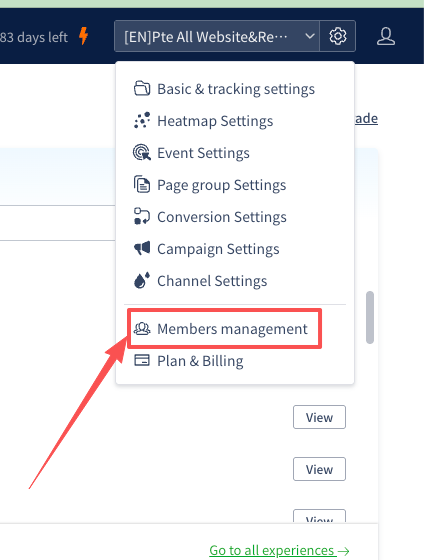
1. Log in to the profile and open **Settings > Member Management**
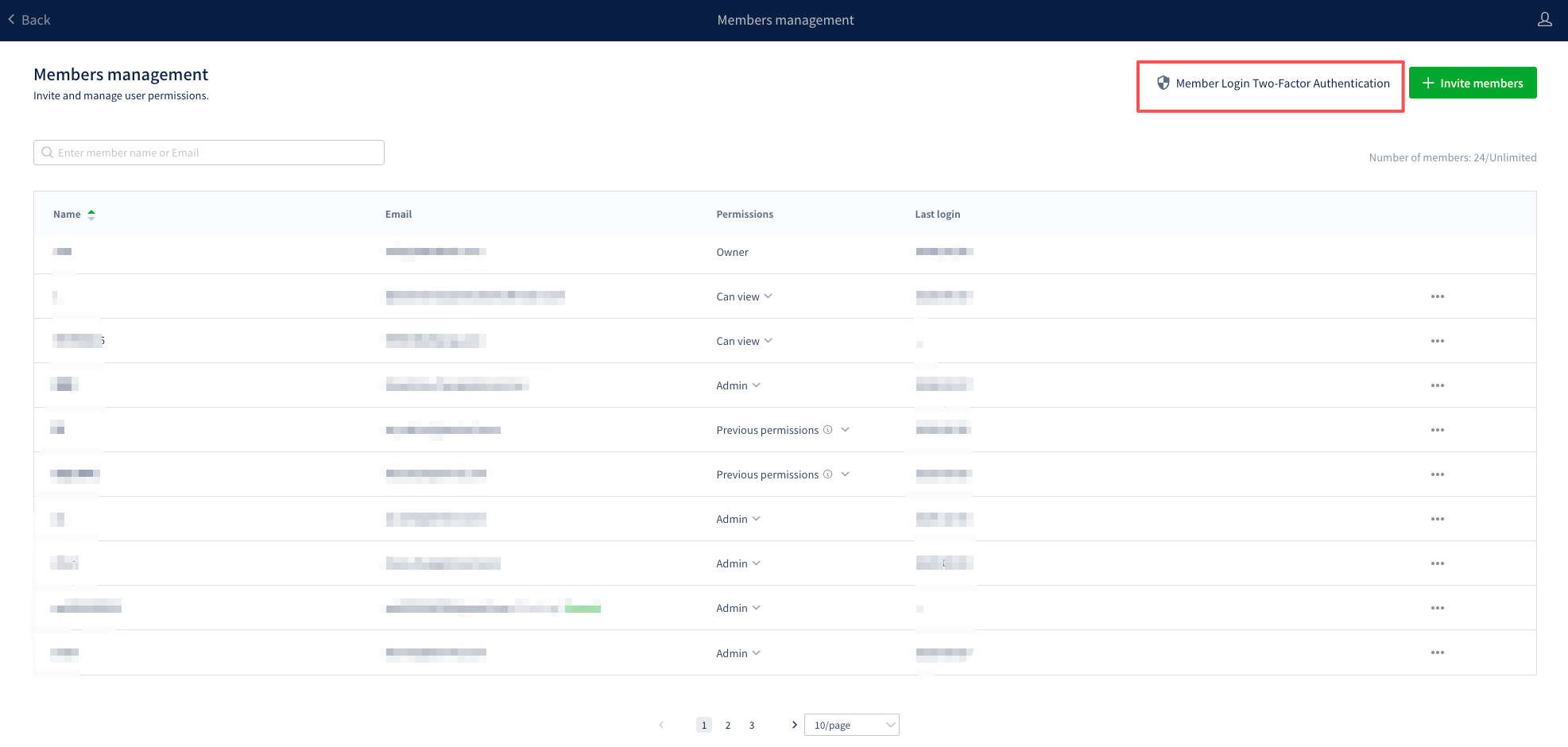
2. Click the **Enable** button in the "Profile 2FA" section above the member list
{% hint style="warning" %}
Non-Owner members will not see the Enable/Disable buttons. They can only view the current status.
{% endhint %}
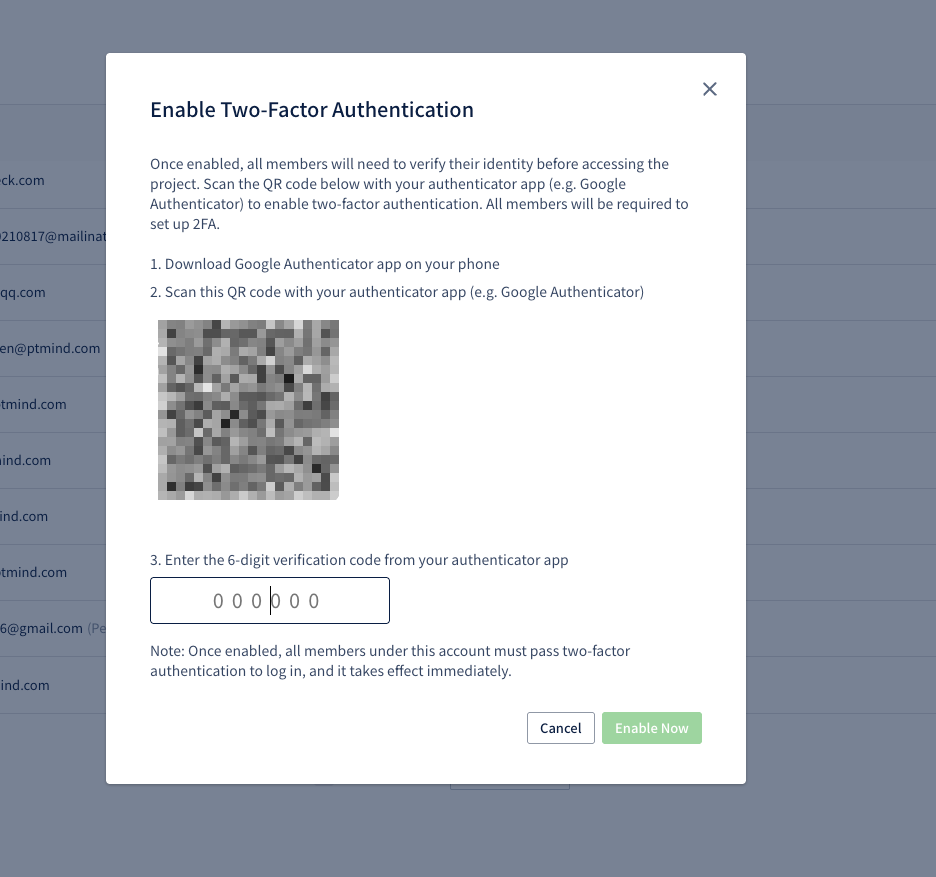
3. Scan the QR code displayed in the dialog with an authenticator app such as Google Authenticator
4. Enter the 6-digit verification code shown in the authenticator app and click **Enable**
5. Once enabled, activated members will automatically receive an email with instructions to bind their 2FA
{% hint style="info" %}
The entry in the authenticator app is named `Ptengine-{profileName}({sid})`, with the account set to your login email. This prevents confusion when using 2FA across multiple profiles.
{% endhint %}
## 2. Binding 2FA as a Member
When a member first accesses a profile with 2FA enabled, a binding dialog will automatically appear.
### Steps
1. Scan the QR code shown in the dialog with an authenticator app
2. Enter the 6-digit verification code from the app
3. Click **Bind** to complete
Once binding succeeds, the member can use the profile as usual.
{% hint style="info" %}
If you have any questions about the binding, use the **Owner email address** shown in the dialog to contact the profile Owner directly.
{% endhint %}
## 3. Re-verification on Access
The verification validity period is **24 hours** (default).
* Within the valid period, the same member accessing the same profile does not need to re-verify
* After the period expires, the next access will prompt for a new verification code
* During active use, every access extends the validity period automatically, so continuous operation will not be interrupted by verification prompts
## 4. Disabling 2FA as Owner
1. Open **Settings > Member Management**
2. Click the **Disable** button in the "Profile 2FA" section
3. Confirm in the dialog that appears
After disabling, all members' 2FA bindings are reset, and the profile becomes accessible without verification. If you re-enable 2FA later, members will need to bind again.
## 5. Behavior When Inviting New Members
When you invite a new member to a 2FA-enabled profile, the invitation email itself does not contain 2FA information. After the invited user signs up and first accesses the profile, the binding dialog will appear at that moment.
## 6. Frequently Asked Questions
**Q. I lost my authenticator app. What should I do?**
A. Contact the profile Owner. The Owner can remove and re-invite you, which allows you to bind again with a new QR code.
**Q. If a member is removed and then re-invited, is the previous binding still valid?**
A. No. A re-invited member needs to bind again with a new QR code.
**Q. What happens to 2FA settings when Owner is transferred to another member?**
A. The 2FA enabled status is preserved. If the new Owner has not yet bound 2FA, they will see the binding dialog the next time they access the profile. The new Owner can also disable 2FA if needed.
**Q. Does 2FA apply to shared heatmap links?**
A. If the link's access setting is "Members only", members of the profile must complete 2FA verification. Public links ("Anyone can view") are not subject to 2FA.
## Related Pages
* [How to Set Up Account 2FA](/en/faq/others/two-factor-auth.md)
* [Inviting Members and Assigning Permissions](/en/start-guide/quick/member-invitation.md)
* [Account Transfer (Owner Change)](/en/account-settings/change-owner.md)