# スクリーンショット

ヒートマップの表示内容を画像として保存できます。レポート資料への添付や、社内での共有に便利です。

***

## 方法 1：ヒートマップ画面から保存

1. 各ヒートマップの右上にあるスクリーンショットアイコンをクリック
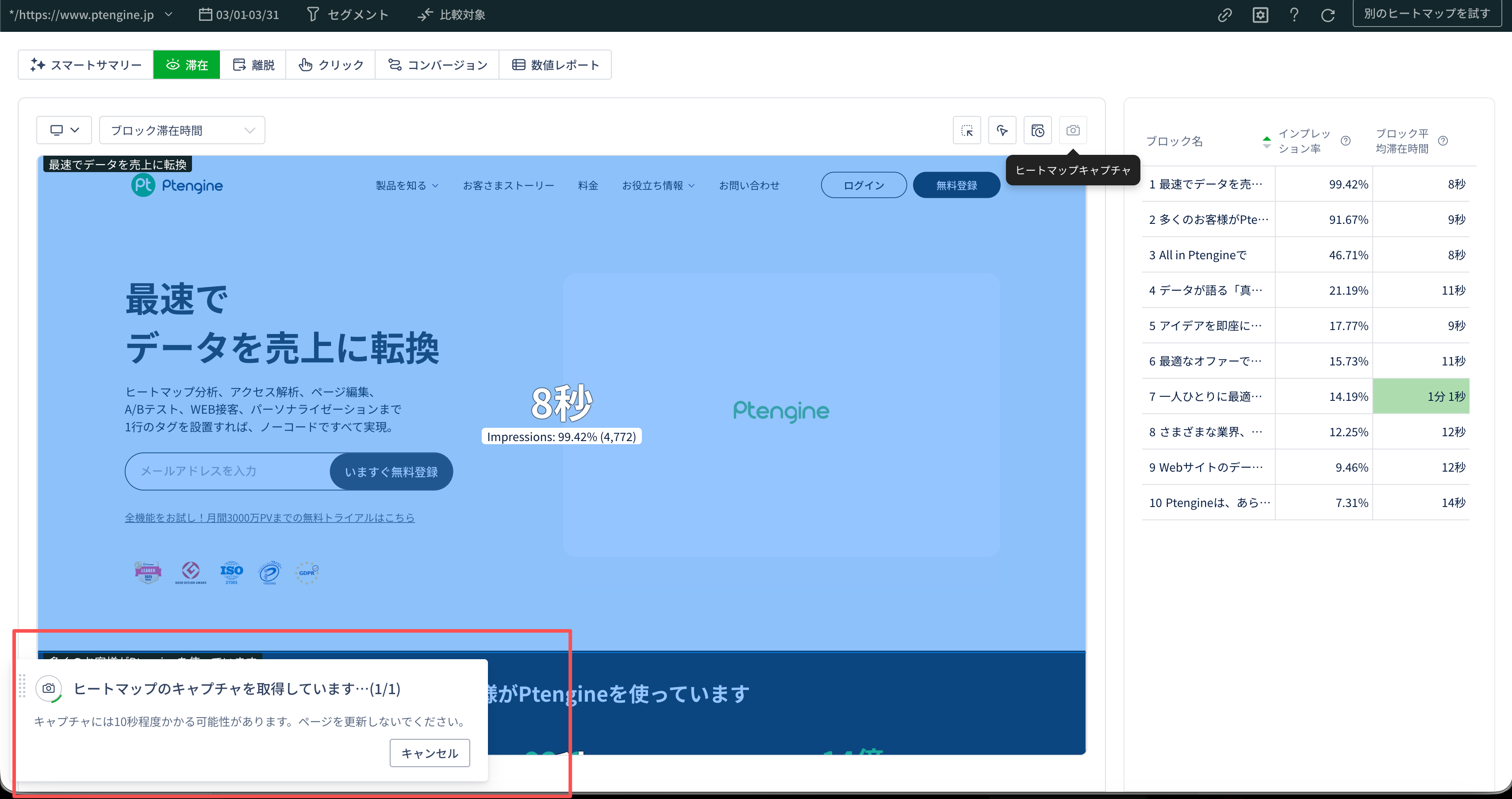
2. 「**スクリーンショットを取得中**」のポップアップが表示される
3. 取得が終わると、自動でローカルにダウンロードされる
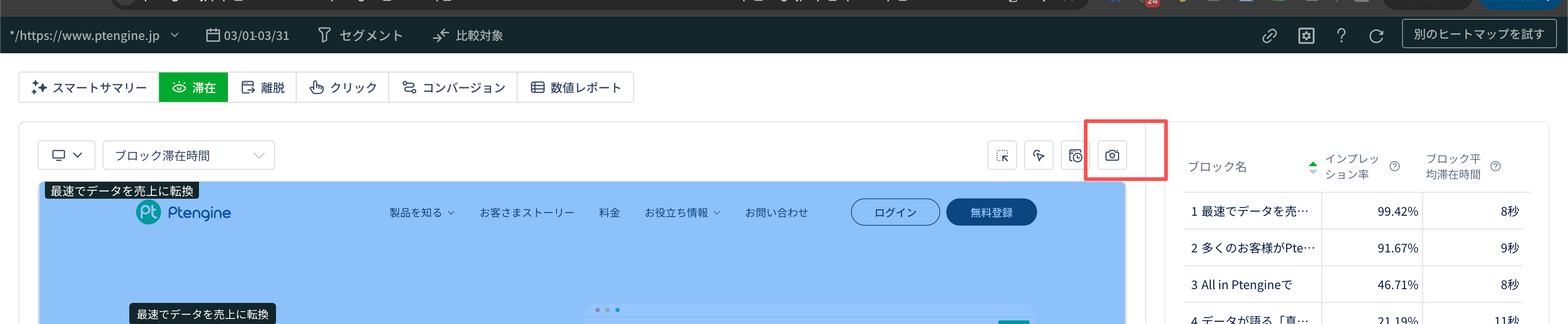
<figure><img src="/files/9SQ19k36mcfi3OgOqy58" alt=""><figcaption><p>スクリーンショットアイコンの位置</p></figcaption></figure>

<figure><img src="/files/VuwdTrajUeh0a5yJWsJI" alt=""><figcaption><p>取得中のポップアップ表示</p></figcaption></figure>

### ご利用時のポイント

* 取得中はページを閉じたり、更新したりしないようにしてください
* 複数のスクリーンショットを同時にダウンロードできます
* 複数ファイルを同時ダウンロードする際、ブラウザから許可を求められたら「**許可**」を選んでください

### ダウンロード後のファイル

* **ZIP 形式**で保存されます
* ZIP 内の「**完全ヒートマップ**」フォルダを開くと、スクリーンショットが確認できます

***

## 方法 2：Chrome 拡張機能から保存

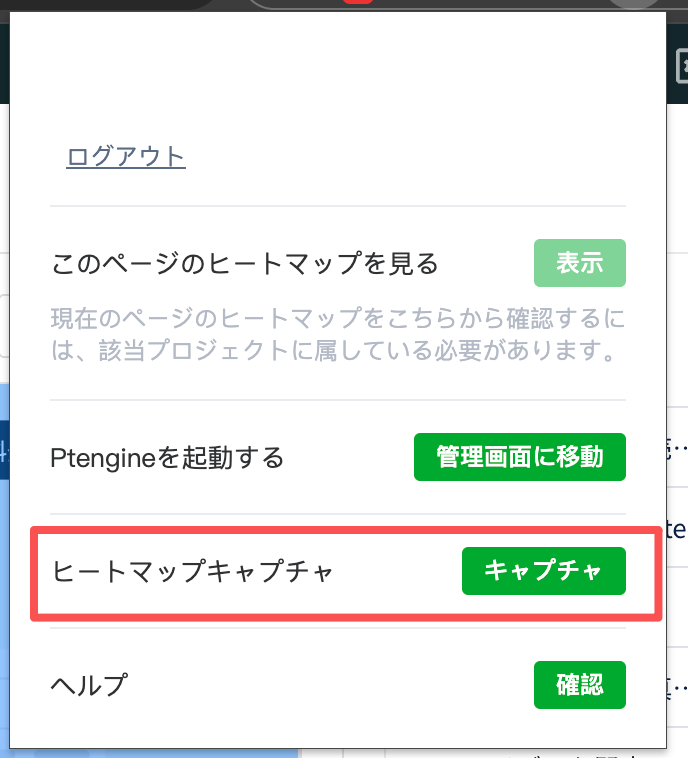
ページのデザインや仕様によっては、ヒートマップ画面からの保存がうまく動かないことがあります。そのときは Ptengine の Chrome 拡張機能を使って、手動でダウンロードしていただけます。

<figure><img src="/files/pcdIW1DB1PvuV37rAfNY" alt=""><figcaption><p>Chrome 拡張機能からのキャプチャ</p></figcaption></figure>

拡張機能のインストール方法は [Ptengine アシスタント](/start-guide/what-is-ptengine/ptengine-assistant.md) をご覧ください。

***

## 関連ページ

* [ツールバー機能 — キャプチャ](https://helps.ptengine.com/insight/smart-heatmap/pages/V0kGYP5UgSSoGxITlE8W#キャプチャスクリーンショット)
* [Ptengine アシスタント](/start-guide/what-is-ptengine/ptengine-assistant.md)


---

# Agent Instructions: Querying This Documentation

If you need additional information that is not directly available in this page, you can query the documentation dynamically by asking a question.

Perform an HTTP GET request on the current page URL with the `ask` query parameter:

```
GET https://helps.ptengine.com/insight/smart-heatmap/screenshot.md?ask=<question>
```

The question should be specific, self-contained, and written in natural language.
The response will contain a direct answer to the question and relevant excerpts and sources from the documentation.

Use this mechanism when the answer is not explicitly present in the current page, you need clarification or additional context, or you want to retrieve related documentation sections.